
Steps
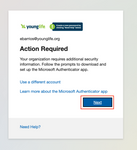
Log In: Enter your Young Life credentials. When the "Action Required" screen appears, click Next.
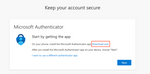
Download App: On the Microsoft Authenticator screen, click Download Now.
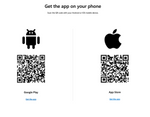
Scan to Download: Scan the QR code on the desktop screen using your phone's camera to download the app for your device (iPhone or Android).
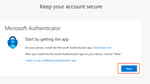
Continue on Desktop: After the app is installed on your phone, return to your desktop window and click Next.
Add Account on Phone: Open the Authenticator App on your phone. Tap Add Account, select Work or school, and then select Scan QR Code.
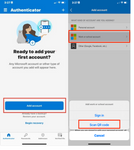
Generate QR Code: On your desktop, click Next to display the unique setup QR code.
Link Account: Scan the desktop QR code with your phone. Your Young Life account will now appear in the app.
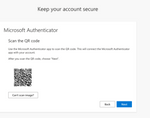
Verify Connection: Click Next on your desktop. A 2-digit code will appear on the screen.
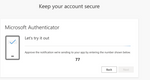
Approve on Phone: Enter the 2-digit code into the Authenticator App on your phone, tap Yes, and then click Next on your desktop.
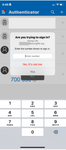
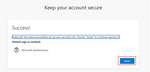
Finalize: Once you see the "Success!" screen, click Done.
Additional Resources & FAQ
Q: Do I have to use the Authenticator App?
A: No. While the app is the recommended method for security, you can contact the Connections Team at 719-381-1929 to request Text Message Authentication.
Q: Will I have to do this every time I log in?
A: You should not have to go through the set up process again, and will only be prompted periodically or when logging in from a new device or location to ensure your account remains secure.

Easy to manage website templates.

Ability to check in kids at the bus.
